
Gimkit Host is a useful feature for teachers, educators, and anyone who wants to turn classroom review into an interactive and engaging experience. Instead of relying only on traditional worksheets, lectures, or ordinary quizzes, Gimkit allows hosts to create live game sessions where students answer questions, compete or collaborate, and stay involved throughout the activity. The combination of educational questions and game-based mechanics makes Gimkit Host an interesting option for modern classrooms.
Gimkit has become popular because it connects learning with gameplay. A teacher can prepare a kit containing questions and then use the Gimkit Host experience to launch a live session. Students can join the game using a game code, join link, or QR code, depending on the setup. Once everyone is ready, the host can start the game and monitor what is happening from the host interface.
For educators who want a simple way to make revision more exciting, understanding Gimkit Host can be extremely useful. The platform provides different game modes, customizable options, player controls, and features designed to make live classroom activities easier to manage. The official Gimkit Help Center explains that hosting a live game generally involves selecting a kit, choosing a game mode, configuring the game options, sharing the game code or join link, and starting the game.
What Is Gimkit Host?
Gimkit Host refers to the host-side experience used to launch and manage a live Gimkit game. In most classroom situations, the teacher acts as the host while students participate as players. The host prepares the educational content, chooses an appropriate game mode, adjusts available settings, opens the lobby, allows students to join, and starts the activity when everyone is ready.
The main purpose of Gimkit Host is to give educators control over the learning game. Students interact with questions and game mechanics, while the host manages the overall experience. This makes the platform more than a simple online quiz because the teacher can influence how the session progresses.
A Gimkit Host can choose a suitable game mode based on the learning objective and the type of classroom activity. Some modes emphasize competition, while others encourage teamwork, strategy, collaboration, or fast-paced gameplay. Gimkit provides a Mode Picker that allows hosts to explore available game modes and view information about them before making a selection.
The host can also configure game options. Depending on the selected mode, these options may include the game goal, whether students can join late, whether a class is connected, and whether a nickname generator is used. Mode-specific settings can also change the balance between answering questions and participating in gameplay.
Why Gimkit Host Is Popular With Teachers
Traditional classroom review can sometimes become repetitive, especially when students repeatedly answer questions without much interaction. Gimkit Host changes this experience by adding game mechanics to the review process. Students are not simply looking at a list of questions. They are participating in a live activity where their answers can influence what happens in the game.
This approach can increase classroom participation because students often find interactive activities more engaging than passive review. The competitive nature of some Gimkit modes can encourage students to pay closer attention, while collaborative modes can help students work together toward a shared objective.
Another advantage is flexibility. A teacher can use the same educational content in different game modes depending on the purpose of the lesson. A quick review before an exam can have a different structure from a longer classroom activity designed around teamwork.
Gimkit Host also gives the teacher a central point of control. Instead of asking students to manage complicated settings themselves, the host can prepare the game and guide the session from the host interface.
How Gimkit Host Works
The basic Gimkit Host process is straightforward. The host begins with a kit that contains the questions students will answer. From the dashboard, the teacher can choose the kit and select the option to play it live.
After selecting the live-play option, the Mode Picker appears. This allows the host to browse available game modes and choose the experience that best fits the class. Once a mode is selected, the host moves to the game options screen.
The game options are important because they allow the host to customize the session. Depending on the game mode, the teacher may be able to choose the game goal, allow or prevent late joining, connect a class, use a nickname generator, and adjust mode-specific settings.
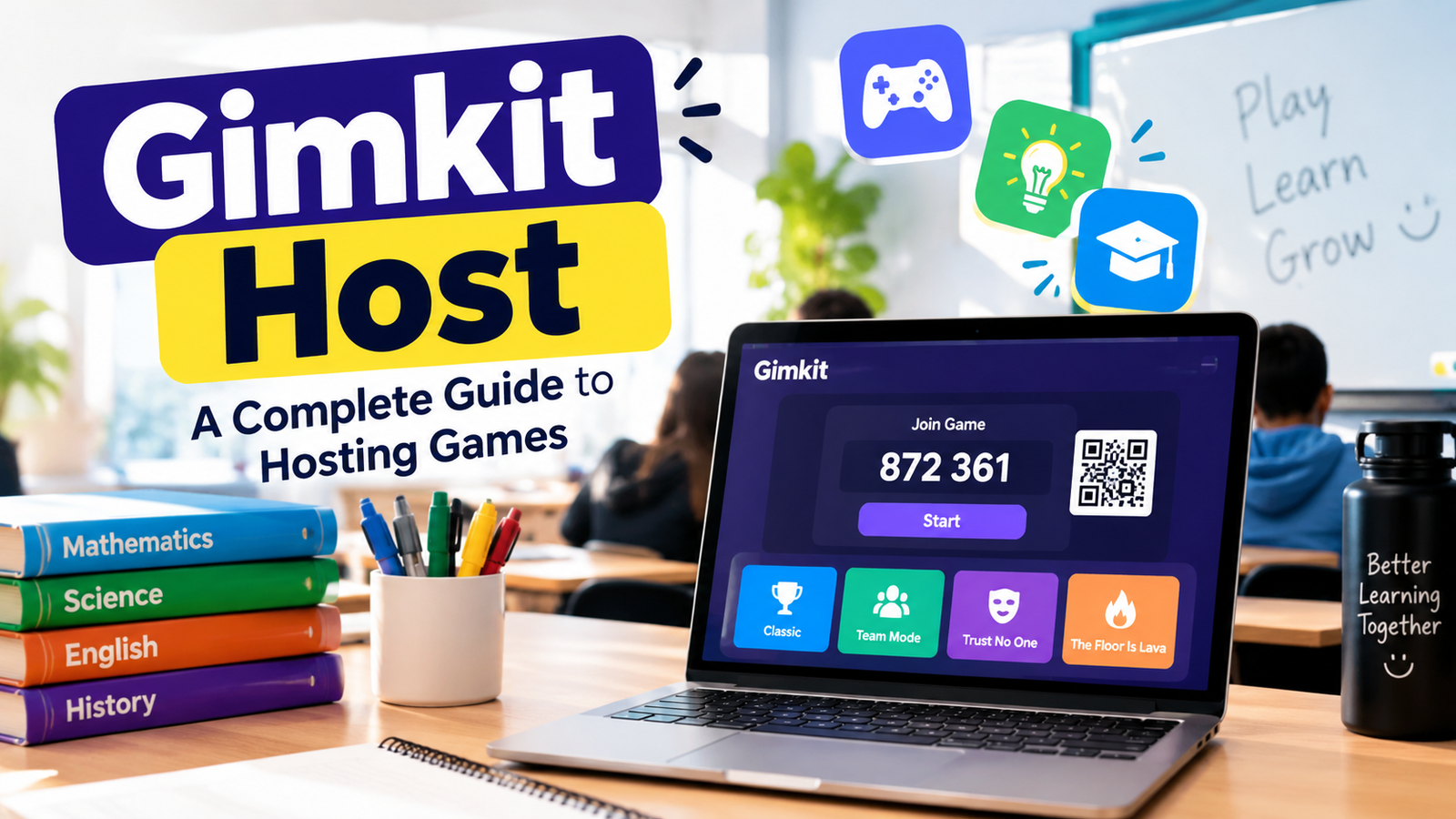
After the settings are configured, the host can continue to the lobby. The lobby provides the information students need to enter the game. Students can generally use the displayed game code, join link, or QR code to participate. According to the official Gimkit documentation, hovering over the game code can display a QR code that students can scan to join more quickly.
Once students have joined and the host is satisfied with the setup, the game can be started. During the game, the host has access to different controls depending on the selected mode.
Creating a Kit Before Using Gimkit Host
A successful Gimkit Host session begins with useful educational content. The questions in the kit should match the lesson objective and the level of the students.
Teachers can create a new kit from the Gimkit dashboard. A kit can contain questions, correct answers, incorrect answers, and in some cases media. The official help documentation explains that users can create a kit from scratch by selecting the New Kit option, entering basic information, choosing a cover image, and adding questions.
The quality of the questions has a direct effect on the learning experience. If questions are too easy, students may not receive enough meaningful practice. If questions are unnecessarily difficult, students may become frustrated and focus more on losing the game than understanding the subject.
A good Gimkit Host session should therefore use questions that are relevant, clear, and appropriate for the students. Questions can cover vocabulary, mathematics, science, history, language, technology, or almost any other educational topic that fits the platform.
Choosing the Right Game Mode
One of the most important decisions for a Gimkit Host is selecting the right game mode. Gimkit offers multiple modes designed for different classroom experiences.
A competitive mode can work well when the goal is to create excitement and encourage students to answer questions quickly. A collaborative mode can be more suitable when the teacher wants students to work together instead of focusing only on individual rankings.
The Mode Picker is particularly helpful because it allows the host to explore the available modes before starting the session. Gimkit describes different modes using labels that can help educators identify experiences focused on areas such as collaboration, strategy, excitement, or a calmer learning environment.
The right choice depends on the lesson. A short revision activity may benefit from a quick and energetic mode, while a longer classroom session may work better with a mode that gives students more opportunities to collaborate.
Understanding the Gimkit Host Lobby
The lobby is an important part of the Gimkit Host experience. It is the area where students gather before the game begins. The host can use this time to make sure students have successfully joined and that the session is ready to start.
The game code is normally visible in the host interface. Students can enter that code through the appropriate Gimkit joining page. A direct join link can also be shared, which can make the process easier when students are using individual devices.
The QR code feature can be particularly useful in classrooms. Instead of asking every student to type a code manually, the teacher can display the QR code and allow students to scan it with a compatible device.
The lobby is also useful for checking participant names. Gimkit provides controls that can allow a host to remove players when necessary. This can help teachers maintain a more organized classroom environment.
Joining a Gimkit Game as a Student
From the student’s perspective, joining a game is generally simple. The student receives the game code, join link, or QR code from the Gimkit Host. After accessing the joining interface, the student follows the prompts to enter the game.
When a teacher is using classes, the joining experience can be different because students may already be connected through their classroom setup. Gimkit provides different options for managing students and classes, allowing educators to organize their live sessions more effectively.
A smooth joining process is important because classroom time is limited. Teachers should ideally display the game code clearly and explain the joining process before starting. This can reduce confusion and prevent students from spending too much lesson time trying to access the game.
Gimkit Host Game Options
Game options allow the host to adjust the session according to the learning environment. These settings vary depending on the selected game mode.
Standard options may include game goals, class connections, late joining, and nickname settings. Some modes also provide additional controls that influence how gameplay works.
For example, a host may want students who arrive late to be able to participate. In another situation, the teacher may want to disable late joining to reduce interruptions. Gimkit’s documentation notes that turning off late joining can be useful when dealing with students who may otherwise disrupt a session by repeatedly joining or rejoining.
Some 2D game modes also provide balance settings that influence the relationship between answering questions and progressing through gameplay. This gives the Gimkit Host greater control over whether the session emphasizes academic questions or game mechanics.
Using Gimkit Host for Classroom Review
Gimkit Host can be particularly effective for review sessions. Before an exam, quiz, or important assessment, a teacher can create a kit containing questions from previous lessons and use a live game to help students practice.
The interactive format can make revision feel less repetitive. Students receive immediate opportunities to apply what they know while also participating in a game environment.
A teacher can also use Gimkit Host at the beginning of a lesson. A short game can help determine how familiar students are with a topic. If many students struggle with certain questions, the teacher can identify areas that may need additional explanation.
Gimkit can also be used near the end of a lesson as a review activity. This provides students with a chance to revisit key concepts before the class finishes.
Gimkit Host and Student Engagement
Student engagement is one of the strongest reasons educators use game-based learning platforms. When students are actively participating, they may be more likely to pay attention and interact with the content.
Gimkit combines questions with gameplay, which can create a stronger sense of participation. Students have a reason to continue answering questions because their responses can affect their progress.
However, engagement should not become more important than learning. The Gimkit Host should choose settings that support the educational objective rather than simply making the game as competitive as possible.
A balanced session can provide both excitement and meaningful academic practice. Teachers can adjust the difficulty, game duration, and available options according to the needs of their students.
Hosting 2D Games With Gimkit Host
Gimkit includes 2D game modes that add movement and interactive environments to the experience. In these modes, the host may have the option to participate as a player or observe students as a spectator.
When hosting as a spectator, the host can observe individual players and access different controls. Gimkit’s official documentation explains that host controls can include viewing the game code, switching between players, adjusting sound, displaying the leaderboard, viewing players, and ending the game early.
This can be useful when a teacher wants to monitor classroom gameplay without directly participating. The host can focus on managing the activity and observing how students interact with the game.
In some 2D modes, the host can also join as a player. Whether this is appropriate depends on the lesson and the teacher’s goals. In many classroom situations, observing as a host may make it easier to monitor the entire group.
Managing Students During a Live Game
A Gimkit Host has several tools for managing a live session. The host can monitor participants and, where supported, remove players from the game.
This feature can be useful when an unknown person joins the session or when a participant uses an inappropriate name. Classroom games should remain focused on learning, and simple moderation controls can help teachers maintain a positive environment.
Some non-2D modes also provide Quick Actions. According to Gimkit’s official documentation, hosts can use certain actions to influence players during supported live games, including removing a player and adjusting balances.
These tools should be used carefully. The best classroom experience usually comes from clear expectations and fair gameplay rather than frequent intervention from the host.
Using the Leaderboard Effectively
The leaderboard can add excitement to a Gimkit Host session because students can see how they are performing relative to others. However, teachers should consider the personality and needs of their class before emphasizing rankings.
Some students enjoy competition and find leaderboards motivating. Others may become uncomfortable when their position is publicly displayed.
A teacher can decide whether displaying the leaderboard supports the learning objective. If the goal is rapid review and friendly competition, the leaderboard may be useful. If the objective is collaborative learning, the teacher may want to emphasize team performance instead.
The host controls available during a live game can include displaying the leaderboard, allowing the teacher to decide when it should be shown.
Gimkit Host for Team Activities
Team-based gameplay can create a different classroom atmosphere. Instead of focusing only on individual performance, students can work toward a shared goal.
This can be useful for teachers who want to encourage communication and collaboration. Students may discuss questions, share ideas, and support classmates while participating in the game.
Team activities can also reduce some of the pressure associated with individual competition. Students still experience the excitement of the game while working toward a collective result.
The host should select a game mode and settings that support teamwork if collaboration is the main goal. Gimkit provides modes and options designed for different types of classroom interaction.
Gimkit Host and Different Age Groups
Gimkit Host can be adapted to different classroom levels because the educational content comes from the questions and kits created or selected by the teacher.
For younger students, questions can be short and straightforward, while the game experience can provide motivation and repetition. Older students can receive more complex questions requiring analysis, calculations, vocabulary knowledge, or subject-specific understanding.
The teacher should also consider game speed. Younger students may need additional time to read questions, while older students may benefit from faster rounds.
The most effective Gimkit Host setup is therefore not necessarily the most competitive one. It is the setup that matches the students’ abilities and the lesson objective.
Tips for a Successful Gimkit Host Session
Preparation can make a major difference. Before starting the live game, the teacher should check that the selected kit contains accurate questions and that the chosen game mode fits the lesson.
It is also helpful to test the game before using it with a full class. This gives the host an opportunity to understand the settings and identify anything that may cause confusion.
The game code should be displayed clearly. If the classroom has a projector or large display, the host can show the lobby so students can easily find the information they need.
Teachers should also explain basic expectations before starting. Students should understand whether the activity is competitive or collaborative, how long it will last, and how they are expected to participate.
Keeping the session focused is equally important. A game should support the lesson rather than take over the entire class period.
Common Problems When Using Gimkit Host
Technology problems can occasionally affect a live classroom game. A student may have trouble joining, a device may have a weak internet connection, or the host may accidentally choose an unsuitable setting.
One useful approach is to prepare the joining information before class begins. The teacher can also keep the game code visible during the lobby stage so students who arrive late can find it easily when late joining is enabled.
If a student cannot join, the teacher can first check whether the student is using the correct joining method and game code. The issue may also be related to the student’s device or network.
Hosts should become familiar with the game options before the lesson. Understanding the available settings reduces the chance of accidentally creating a game that does not match the classroom requirements.
Gimkit Host and Late Joining
Late joining can be useful in real classrooms because students may sometimes arrive after the game has already started. If the host allows late joining, those students may be able to enter the live activity without requiring the teacher to restart the game.
However, late joining can also create management challenges. Teachers who want a tightly controlled session may prefer to disable it.
The best choice depends on the classroom environment. If students frequently arrive at different times, allowing late joining may save time. If everyone is expected to start together, disabling the option may create a more controlled experience.
Gimkit Host and Nickname Generator
The nickname generator is another useful classroom management feature. When enabled, students can receive automatically generated names rather than entering their own names.
This can make the joining process faster and can help teachers avoid inappropriate usernames. Gimkit explains that the nickname generator can be enabled when hosting a live game, although its availability changes when classes are being used.
For classrooms where student identity is already managed through classes, the teacher may prefer the class-based experience instead.
How to Make Gimkit Host More Educational
The most effective way to use Gimkit Host is to connect the game directly to a learning goal. Instead of creating random questions, teachers should select content that reinforces concepts students are expected to understand.
Questions can be designed to identify common mistakes. If students repeatedly choose the same incorrect answer, the teacher can use that information to revisit the concept.
Teachers can also discuss difficult questions after the game. A short explanation following a challenging question can turn a simple game into a meaningful learning activity.
Another useful approach is to vary the difficulty. A mixture of easier and more challenging questions can keep students confident while still encouraging deeper thinking.
Using Gimkit Host Before an Exam
Gimkit Host can work well as an exam preparation tool. Teachers can create a review kit covering the most important topics from the course.
Students can answer questions in a game environment, while the teacher observes which areas appear difficult. After the session, the teacher can focus additional instruction on concepts that need reinforcement.
This makes the activity more useful than simply repeating the same worksheet. Students receive another opportunity to practice while the teacher gains insight into their understanding.
Gimkit Host as a Formative Assessment Tool
Formative assessment is designed to help teachers understand student learning during instruction. Gimkit Host can support this process because the teacher can observe how students respond to questions during a live session.
The results should not necessarily be treated as a formal grade. Instead, they can provide information about areas of strength and weakness.
For example, if most students answer vocabulary questions correctly but struggle with application questions, the teacher may decide to spend more time on practical examples.
This is one of the most valuable ways to use Gimkit. The game becomes a source of classroom feedback rather than simply an entertainment activity.
Gimkit Host and Classroom Motivation
Motivation can influence how students approach review activities. Game-based learning can create a sense of progress and achievement that encourages students to continue participating.
The host can support this motivation by creating achievable goals and selecting a game mode that fits the class. The teacher should also make sure that students understand that the purpose of the activity is learning.
Healthy competition can be fun, but students should not feel that their value depends on their leaderboard position. Encouraging improvement, participation, and understanding can create a more positive classroom environment.
Gimkit Host for Remote and Hybrid Learning
Gimkit Host can also be useful when students are not physically sitting in the same classroom. In remote or hybrid environments, the teacher can share the game information with students and allow them to join from their own devices.
The interactive nature of a live game can help reduce some of the distance associated with online learning. Students can participate in the same activity while communicating with the teacher through the chosen online classroom platform.
For remote learning, teachers should make sure students understand how to join before the activity begins. A direct join link can be convenient because it reduces the need for students to manually enter information.
Safety and Classroom-Friendly Use
Any educational gaming platform should be used responsibly. Teachers should choose content appropriate for their students and maintain a respectful classroom environment.
If students are creating content or games using Gimkit Creative, the platform also provides community rules covering appropriate content, respectful behavior, safety, intellectual property, and other requirements.
The Gimkit Host should therefore focus on creating a positive educational experience. Questions, names, game content, and classroom discussions should remain suitable for the students participating.
Is Gimkit Host Easy to Use?
For most educators, the basic Gimkit Host process is relatively easy to understand. The main workflow involves choosing a kit, selecting a mode, adjusting settings, opening the lobby, sharing the joining information, and starting the game.
The more advanced features may require some practice. Teachers who want to use specialized modes, team activities, balance settings, or host controls should spend a little time exploring those features before using them with students.
The good news is that the platform provides an official Help Center with documentation covering hosting, game modes, settings, QR codes, account management, and other features.
For the most accurate and current instructions, teachers can visit the official Gimkit Help Center.
Final Thoughts on Gimkit Host
Gimkit Host provides educators with a practical way to transform question-based review into an interactive classroom experience. By combining educational content with game mechanics, it can make revision sessions more engaging while giving teachers useful control over the activity.
The strongest Gimkit Host experience begins with good preparation. A well-designed kit, suitable questions, an appropriate game mode, and clear classroom expectations can make the session much more effective.
Teachers should also remember that the goal is learning. Competition, leaderboards, rewards, and exciting gameplay can increase participation, but they should support rather than replace meaningful instruction.
Whether it is being used for exam revision, vocabulary practice, formative assessment, classroom review, or collaborative activities, Gimkit Host gives educators a flexible way to bring more interaction into learning. With the right settings and thoughtful questions, a live Gimkit game can become more than a simple quiz. It can become an engaging learning experience that encourages students to participate, practice, and improve their understanding of the subject.
Read More About : triips