
In this story
Gimkit has become a popular choice for teachers and educators who want to make classroom learning more interactive, competitive, and enjoyable. Instead of relying only on traditional quizzes, teachers can turn questions and answers into an engaging game where students participate, make decisions, earn rewards, and stay involved throughout the lesson. For anyone searching for host gimkit, understanding how the platform works can make the entire classroom experience much easier.
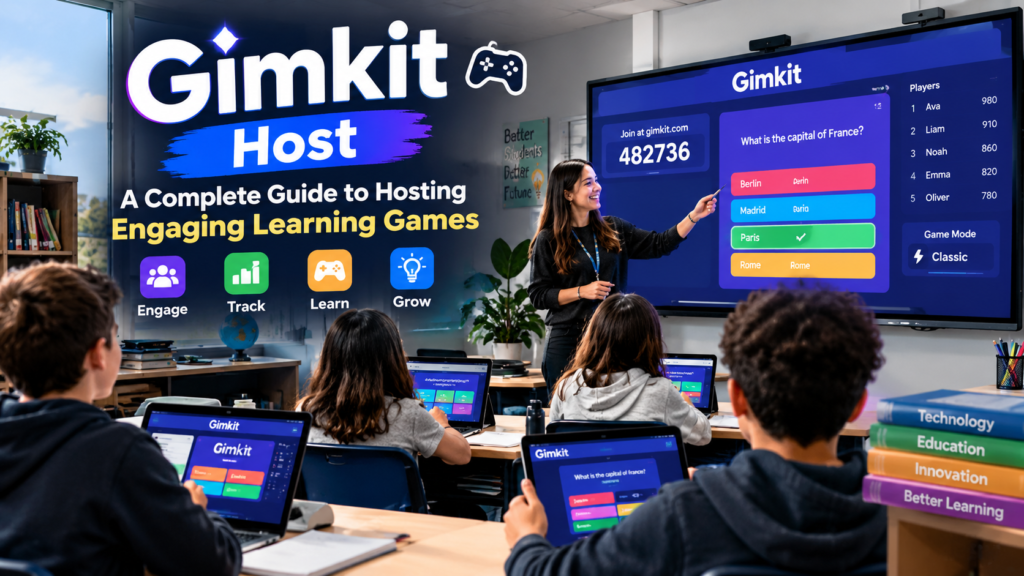
The idea behind host gimkit is simple. A teacher prepares or selects a Kit, chooses a suitable game mode, adjusts the available settings, shares the game code or join link with students, and then starts the live session. Once students enter the lobby, the teacher controls the experience from the host screen. Gimkit officially explains that hosting a live game involves selecting a Kit, choosing a game mode, setting game options, sharing the game code or join link, and starting the game.
For teachers who are using Gimkit for the first time, the process may seem slightly confusing because the platform offers different game modes and settings. However, once the basic hosting process becomes familiar, it is relatively straightforward. This guide explains the complete host gimkit process, including preparation, game selection, student joining, game controls, classroom management, troubleshooting, and practical strategies for creating better learning sessions.
What Does Host Gimkit Mean?
The phrase host gimkit generally refers to the process of starting and managing a live Gimkit game as a teacher or game host. The host is responsible for choosing the educational content, selecting the game mode, configuring the available options, inviting students, and controlling the game while it is running.
Hosting is different from simply joining a Gimkit game. Students normally enter an existing game using a game code, join link, or QR code, while the host creates the session and controls its settings.
This distinction is important because the host has access to features that regular players do not have. Depending on the selected mode, a host may be able to view the leaderboard, monitor players, remove participants, manage certain game settings, adjust sound, spectate players, and end the game when necessary.
The host role is especially useful in classrooms because it gives the teacher control over the pace and structure of the activity. Rather than allowing a quiz to become a completely uncontrolled competition, the teacher can use the available controls to keep the activity focused on learning.
Why Teachers Use Gimkit
One of the biggest reasons educators choose Gimkit is that it can transform ordinary question-and-answer activities into interactive experiences. Students often respond differently when questions are presented inside a game environment. The combination of competition, rewards, visual elements, and immediate feedback can make review sessions feel more engaging.
When a teacher uses host gimkit effectively, the platform can become more than a simple quiz tool. It can be used for revision before an exam, vocabulary practice, concept review, introductory activities, formative assessment, and classroom competitions.
Another advantage is flexibility. A teacher can create a Kit based on a particular subject, topic, chapter, or lesson. Gimkit’s official help documentation explains that teachers can create Kits by entering questions, correct answers, incorrect answers, and optional media.
This means the educational value of a Gimkit session depends heavily on the quality of the questions. A well-designed game with meaningful questions can support learning much better than a game that focuses only on speed.
Getting Ready Before You Host Gimkit
Good preparation can make the difference between a smooth classroom game and a frustrating one. Before you host gimkit, it is useful to check your Kit, questions, internet connection, classroom devices, and game settings.
The first thing to consider is your learning objective. Ask yourself what students should learn or review during the session. If the purpose is vocabulary practice, the questions should focus on vocabulary. If the activity is exam revision, the Kit should reflect the concepts students are expected to understand.
You should also review your questions before starting the live game. Incorrect answers, unclear wording, or questions with multiple possible interpretations can create unnecessary confusion. A game may be exciting, but its educational value depends on accurate and understandable content.
It is also helpful to test the classroom technology before students join. Make sure the teacher computer has a stable internet connection and that the display or projector is working if you plan to show the host screen to the class.
Creating a Gimkit Kit
A Kit is the content that powers a Gimkit game. If you do not already have a suitable Kit, you can create one from your dashboard.
When creating a Kit, you can provide a name, language, subject, and cover image before adding questions. Gimkit allows questions to include correct and incorrect answers and can also support media in questions.
For an effective host gimkit session, the Kit should match the students’ current learning level. Questions that are far too easy may make the game boring, while questions that are consistently too difficult can discourage students.
A balanced Kit can contain a mixture of straightforward recall questions and questions that require students to apply what they have learned. This creates a better learning experience because students are not simply memorizing answers.
Choosing the Right Game Mode
Game mode selection is one of the most important parts of the host gimkit process. Different modes can create very different classroom experiences.
Gimkit provides multiple game modes designed for different styles of interaction. Its official documentation explains that the Mode Picker can be used to browse available modes and view information about each one before making a selection.
A competitive mode may work well when students enjoy fast-paced activities. A collaborative mode may be better when the objective is teamwork. Some modes are more strategic, while others emphasize interaction or discussion.
The best choice is not necessarily the most exciting mode. The best choice is the mode that supports your lesson objective.
For example, if students are reviewing material before a test, you may want a mode that keeps the focus on answering questions. If you are organizing a fun end-of-week activity, you might choose a mode with more gameplay and interaction.
How to Host Gimkit Live
The basic process to host gimkit starts from the teacher dashboard. Once you have selected the Kit you want to use, you can choose the option to play it live.
The Mode Picker then appears, allowing you to select a game mode. After choosing the mode, you can continue to the game options.
Game options can vary depending on the mode. These settings can influence how the game works, how students join, what goals are used, and whether students can join after the game has started. Gimkit’s official hosting guide explains that the game options screen allows hosts to configure different aspects of the live session before beginning.
After the options are configured, the game lobby opens. The lobby provides the information students need to join the session.
At this point, students can use the displayed game code, join link, or QR code. Gimkit explains that the QR code can be displayed by hovering over the game code on the host screen. Students can also visit the join page and enter the game code.
Once everyone is ready, the host can start the game.
Sharing the Gimkit Game Code
The game code is one of the easiest ways to bring students into a live Gimkit session. After the host creates the game, the code becomes available in the lobby.
Teachers can display the code on a classroom projector or interactive board. Students can then use the code to join from their devices.
For classrooms with younger students, the QR code option can be particularly convenient. Instead of typing a code manually, students can scan the QR code using a compatible device.
The join link is another useful option. A teacher can copy the link and share it through an approved classroom communication system.
The important thing is to use the method that creates the least friction for your students. If students spend too much time trying to join, the energy of the activity can disappear before the game even begins.
Managing the Lobby
The lobby is an important part of the host gimkit experience. It gives the teacher a chance to confirm that students are joining correctly before the game begins.
During this stage, the host can check participant names and make sure the expected students are present. If an inappropriate or unexpected name appears, the host has tools for managing players.
This is especially useful in a classroom where many students are joining at the same time. Instead of immediately starting the game, take a short moment to confirm that the participants are ready.
A calm lobby routine can also reduce technical problems. Students should know where to enter the code, what name to use, and what to do once they reach the lobby.
Joining as a Player or Spectator
Some Gimkit 2D game modes give the host the choice to participate as a player or observe the game as a spectator. Gimkit’s documentation explains that hosts can use a toggle in the lobby to choose how they join certain 2D games.
Joining as a player can be useful when the teacher wants to experience the game from the student’s perspective. However, spectating may be more practical when the teacher needs to monitor student behavior and progress.
The choice depends on the purpose of the activity. If classroom monitoring is important, spectating can give the teacher a better overview. If the teacher wants to demonstrate the gameplay, joining as a player may be useful.
Understanding Host Controls
Once the game begins, the host gimkit screen becomes the main control center for the session.
The available controls depend on the selected game mode, but hosts may have access to features related to sound, players, leaderboards, spectating, and ending the game.
In 2D modes, Gimkit provides controls that allow hosts to view players, move between players while spectating, display the leaderboard, adjust sound, and end the game early.
Understanding these controls before starting the classroom activity can help you respond quickly when something unexpected happens.
For example, if a student disconnects, a participant uses an inappropriate name, or the class needs to stop early, the teacher should know where the relevant control is located.
Using the Leaderboard Effectively
Leaderboards can add excitement to a Gimkit session, but teachers should think carefully about how they use them.
Competition can motivate students, but constantly emphasizing the top position may cause weaker students to feel discouraged. A better approach is to treat the leaderboard as one part of the game rather than the only measure of success.
You can celebrate improvement, accuracy, effort, teamwork, and good decision-making. This creates a healthier classroom environment where students understand that learning matters more than simply finishing first.
When you host gimkit, remember that the platform is a learning tool first and a game second.
Managing Students During the Game
Classroom management remains important even when students are engaged in a digital game.
Before starting, explain the basic expectations. Students should know that they are expected to answer honestly, use appropriate names, stay focused, and follow classroom rules.
If students become overly competitive, remind them that the purpose of the activity is learning. A short explanation can often prevent the game from becoming distracting.
The host can also monitor participants through the available controls. Gimkit provides tools for viewing and removing players when necessary.
This makes the host role particularly valuable in larger groups.
How Many Students Can Join?
The number of students who can participate depends on the type of game and account situation. Gimkit’s current help documentation states that the hard limit for live games is 500 students, while 2D game modes have a separate hard limit of 60 students. Account and mode restrictions can also affect participation.
For most normal classrooms, the practical limit will not be a major concern. However, teachers running large events should check the current limitations before planning a very large session.
Internet reliability also matters. A large number of connected devices can place additional demands on the network, so schools should consider network performance when hosting larger games.
Making Host Gimkit More Educational
It is easy to focus on the fun side of Gimkit and forget the learning objective. The strongest host gimkit sessions combine both.
One effective approach is to use questions that encourage students to think rather than simply recall information. For example, instead of asking only for a definition, a teacher can present a situation and ask students to identify the correct concept.
You can also pause after important questions and discuss why an answer was correct. This transforms the game into a teaching opportunity.
Another useful strategy is to review difficult questions after the game. If many students answered the same question incorrectly, that may indicate that the concept needs further explanation.
In this way, Gimkit becomes a source of formative assessment. The teacher can learn what students understand and where they need additional support.
Using Gimkit for Review Sessions
Review sessions are one of the most natural uses for host gimkit. Instead of asking students to silently complete a worksheet, teachers can turn revision into an interactive activity.
For example, a science teacher could create a Kit covering the key concepts from a recent chapter. A history teacher could prepare questions about important events and dates. A language teacher could use vocabulary and grammar questions.
The game can be used at the beginning of a lesson to activate prior knowledge or near the end to check understanding.
The important part is aligning the questions with the lesson. When the content is relevant, students are more likely to see the activity as meaningful rather than simply entertainment.
Using Gimkit for Formative Assessment
Formative assessment helps teachers understand student progress during learning rather than waiting until the final exam.
A Gimkit game can provide useful signals about which topics students understand and which areas may require more teaching.
Suppose most students answer a particular concept incorrectly. The teacher can immediately recognize that the topic may need clarification.
This makes host gimkit useful not only for entertainment but also for instructional decision-making.
Teachers can use the results to decide whether to move forward, review a topic, create additional practice questions, or provide individual support.
Tips for Creating Better Questions
Question quality has a direct impact on the success of a Gimkit game.
Questions should be clear and concise. Avoid unnecessary wording that makes students spend more time interpreting the question than thinking about the answer.
Answer choices should also be reasonable. Incorrect answers should represent realistic mistakes rather than obviously ridiculous options.
It is also helpful to avoid creating too many questions that test exactly the same skill. Variety keeps the game interesting and gives students a broader review.
For advanced students, scenario-based questions can encourage deeper thinking. For younger learners, simple and visually clear questions may work better.
The goal is to make every question contribute to the learning objective.
Common Problems When You Host Gimkit
Technical issues can happen even when everything has been prepared correctly.
One common issue is students being unable to join. This can happen because of an incorrect game code, internet problems, browser issues, or device restrictions.
If several students cannot join, first check whether the host device has a stable connection. Then confirm that students are using the correct joining method and current game code.
Another problem can occur when a student’s device freezes during gameplay. Restarting the browser or reconnecting to the game may resolve the issue, depending on the cause.
Sometimes the issue is not Gimkit itself but the school’s network. Firewalls, filtering systems, or unstable Wi-Fi can interfere with web-based classroom tools.
For official guidance and current hosting information, teachers can consult the Gimkit Help Center.
What to Do If Students Join Late
Late joining can be useful when students arrive after the activity has already started. Gimkit provides a game option that allows hosts to control whether students can join late. Live games default to allowing late joining, according to the official hosting documentation.
Whether you should allow it depends on your classroom situation.
If students regularly enter the class at different times, allowing late joining may prevent them from missing the entire activity.
If the game is designed as a short assessment where everyone needs to begin at exactly the same time, you may prefer stricter control.
The best approach is to decide before starting rather than changing the plan in the middle of the game.
Using the Nickname Generator
Student names can sometimes create classroom management issues, especially in large groups. Gimkit provides a Nickname Generator option that can automatically assign safe names to students when enabled.
This can be useful when teachers want to minimize inappropriate names or simplify the joining process.
However, the right choice depends on the classroom. In some environments, using recognizable student names makes it easier for the teacher to monitor participation.
Hosting Large Gimkit Games
Large-group hosting requires more planning than a normal classroom game.
When many students join simultaneously, the teacher should make sure the network is capable of handling the activity. Students should also know how to join before the host begins.
For large events, it can be helpful to display clear joining instructions on the classroom screen.
The host should also avoid making unnecessary changes during the game. The more familiar the teacher is with the controls, the easier it becomes to manage a large group.
Gimkit’s documented live-game limit is currently 500 students, while 2D modes have a separate 60-student limit.
Making the Experience Fun Without Losing Focus
A successful host gimkit session should feel enjoyable without losing its educational purpose.
Teachers can create excitement by explaining the game goal before starting. Students should understand what they are trying to achieve and why the questions matter.
Short sessions are often easier to manage than extremely long games. If students remain focused and the activity ends while enthusiasm is still high, the experience can feel more successful.
You can also change the type of activity from one lesson to another. This prevents students from becoming bored with the same routine.
Variety is especially valuable because Gimkit offers different modes with different styles of interaction.
Using Game Reports After Hosting
The learning experience does not have to end when the game finishes.
Gimkit provides game reports after hosting a Kit, allowing teachers to review class and individual data. The official help documentation explains that reports can be viewed after a live game and can also be saved as a PDF.
This information can be useful for identifying areas where students struggled.
Instead of simply announcing the winner, spend a few minutes reviewing the results. Ask students which questions were difficult and discuss common mistakes.
This turns the end of the game into another learning opportunity.
Host Gimkit for Different Subjects
One of the strongest features of the platform is that it is not limited to a single subject.
A mathematics teacher can use it for calculations, formulas, algebraic concepts, geometry, and problem-solving.
A science teacher can create questions about biology, chemistry, physics, environmental science, or general scientific concepts.
Language teachers can use vocabulary, grammar, reading comprehension, and sentence structure.
History and social studies teachers can create questions about events, people, geography, government, and culture.
Even subjects that are traditionally less quiz-focused can benefit from interactive review when the questions are designed creatively.
Host Gimkit for Different Age Groups
The style of a Gimkit activity should match the students’ age and ability level.
Younger students may benefit from simple questions, visual content, shorter games, and straightforward goals.
Older students can handle more complex scenarios, challenging questions, and strategic gameplay.
The teacher should also consider reading speed. If questions are long, students may need more time to understand them before making a decision.
The best host gimkit experience is one that feels appropriately challenging without becoming overwhelming.
Improving Classroom Engagement
Student engagement does not automatically happen simply because a game is available.
The teacher’s introduction matters. Explain why the activity is being used and connect it to what students have already learned.
During the game, encourage students to think carefully instead of rushing through every question.
After the game, discuss important mistakes and achievements.
This creates a complete learning cycle where students prepare, participate, reflect, and improve.
Host Gimkit as a Team Activity
Not every classroom activity needs to focus on individual competition.
Depending on the selected game mode and settings, teachers can create experiences that emphasize collaboration and teamwork. Gimkit’s mode descriptions include different styles such as strategic and collaborative gameplay.
Team-based activities can be particularly useful when the teacher wants students to communicate and make decisions together.
This can also reduce pressure on students who may feel uncomfortable with individual competition.
Read More About : goth ai
Safety and Appropriate Content
Because Gimkit is commonly used with students, teachers should make sure their Kits and activities are appropriate for the classroom.
Questions, names, images, and other content should follow school policies and platform rules.
Gimkit’s community rules emphasize safe, respectful, age-appropriate content and prohibit harmful, hateful, bullying, or inappropriate material in published Creative content.
A responsible host gimkit session should always prioritize student safety and respectful participation.
Is Gimkit Difficult to Host?
For beginners, the interface may require a little practice, but the basic hosting process is relatively simple.
The main workflow is to select a Kit, choose a mode, configure options, open the lobby, share the joining information, and start the game.
Once a teacher has hosted several sessions, the process usually becomes much more familiar.
The most important thing is preparation. If your Kit is ready, your questions are accurate, your settings are understood, and your students know how to join, the live session can run smoothly.
Best Practices for Host Gimkit
A good host gimkit session starts with a clear objective. Know what students should learn or review before choosing the game mode.
Keep questions accurate and relevant. Avoid adding questions simply to make the Kit longer.
Choose a game mode that matches the classroom environment rather than choosing a mode only because it looks exciting.
Explain the joining process before students begin.
Check participant names in the lobby.
Monitor students during gameplay.
Use the leaderboard as a motivational feature rather than treating it as the only measurement of success.
Discuss difficult questions after the game.
Review the available report information to identify learning gaps.
Most importantly, keep the game connected to the lesson.
Final Thoughts on Host Gimkit
The popularity of Gimkit comes from its ability to combine educational questions with interactive gameplay. For teachers, host gimkit provides a practical way to turn classroom review into an experience that can be engaging, competitive, collaborative, and informative.
Hosting a game is not simply about pressing the start button. The best results come from thoughtful preparation, strong questions, suitable game modes, effective classroom management, and meaningful follow-up.
A teacher who understands how to host gimkit can use the platform for much more than entertainment. It can support revision, formative assessment, classroom participation, teamwork, and student motivation.
The most important lesson is to keep the educational purpose at the center of the experience. When the questions are useful, the game mode is appropriate, and the teacher actively connects gameplay with learning, Gimkit can become a valuable part of a modern classroom.
Whether you are a teacher trying Gimkit for the first time or someone looking to improve existing classroom games, learning the hosting process is a useful starting point. With a little preparation and practice, host gimkit activities can become a natural part of lessons and review sessions, giving students an interactive way to demonstrate what they know while keeping the classroom atmosphere active and engaging.